Wednesday, 2 September 2020

How to enable Fn key in Windows 10 HP Laptop

 Sometimes it is hard to use Fn key and then use F1-F12 function keys. We have to hold Fn key first and then press F1-F12 keys to have hot keys enabled.

To avoid this issue we can enable Fn key bydefault by using following short cut.

Press Alt + Ctrl + fn + Shift button to enable or disable Fn key


Note: Please follow above sequence, otherwise the solution doesn't work.


This can be achieved through bios setup and enabling hot key mode. But I would recommend to use above short cut to achieve this quickly.


https://amzn.to/3lQnt52


https://amzn.to/355NxSR


https://amzn.to/341xFlg


https://amzn.to/3k58tQ9


https://amzn.to/31cS0Ch


https://amzn.to/2H8IfOf


https://amzn.to/355O7jv


https://amzn.to/341ZdXu


https://amzn.to/3j6r4tS


https://amzn.to/3j0zFhH


Baby Pampers


Tuesday, 26 November 2019

Running Selenium script in BrowserStack + Cross Browser testing

When you are running your Selenium scripts in multiple browsers or in mobile devices, you might be facing lot challenges in installing browsers or connecting to specific mobile devices and sparing lot of time around this.

BrowserStack is proprietary tool which supports us to run our selenium scripts in various browsers(Chrome, IE, Firefox, Safari) which also supports lots of browser version in various operating systems.

It also supports Android and IOS mobile devices to execute scripts in Native and Hybrid applications.

BrowserStack works on RemoteWebDriver and with Browser/Device DesiredCapabilities options.

Following is the code snippet to run simple script

import org.openqa.selenium.By;
import org.openqa.selenium.Platform;
import org.openqa.selenium.WebDriver;
import org.openqa.selenium.WebElement;
import org.openqa.selenium.remote.DesiredCapabilities;
import org.openqa.selenium.remote.RemoteWebDriver;

import java.net.URL;
import java.util.concurrent.TimeUnit;

public class BrowserStackScript {
public static final String USERNAME = "UserName";
  public static final String AUTOMATE_KEY = "XXXXX";
  public static final String URL = "https://" + USERNAME + ":" + AUTOMATE_KEY + "@hub-cloud.browserstack.com/wd/hub";

  //below code is to run on web browsers on any computer devices(not in mobile devices) through browserstack
  public static void main(String[] args) throws Exception {
 
        // To execute scripts through remote server or grid on mulitple browsers, we need to set capabilities of platform, version etc., to run the scripts
DesiredCapabilities capability = new DesiredCapabilities();

capability.setPlatform(Platform.WIN8);
capability.setBrowserName("Chrome");
capability.setVersion("70");

capability.setCapability("browserstack.debug", "true");
// Creatng URL object
URL browserStackUrl = new URL(URL);
// Create object of driver. We execute scripts remotely. So we use RemoteWebDriver
//There are many constructors to remotewebdriver
       //To pass URL object and Capabilities object, use the below mentioned constructor
       //RemoteWebDriver(URL remoteAddress, Capabilities desiredCapabilities)
WebDriver driver = new RemoteWebDriver (browserStackUrl, capability);
//Implicit wait for 30 seconds
driver.manage().timeouts().implicitlyWait(30, TimeUnit.SECONDS);
// to open url
driver.get("http://easy2autotest.blogspot.com/");
WebElement element = driver.findElement(By.xpath("//a[contains(text(),'2018')]"));
element.click();
Thread.sleep(4000);
driver.findElement(By.xpath("//h3[@class='post-title entry-title']//a[contains(text(),'Micro Focus UFT certification exam details')]")).click();
Thread.sleep(4000);
System.out.println(driver.getTitle());
driver.quit();
  }
}

// below code is to run on mobile devices
//   public static void main(String[] args) throws Exception {
//
//     DesiredCapabilities caps = new DesiredCapabilities();
//     caps.setCapability("browserName", "iPhone");
//     caps.setCapability("device", "iPhone 8 Plus");
//     caps.setCapability("realMobile", "true");
//     caps.setCapability("os_version", "11");
//     caps.setCapability("name", "Bstack-[Java] Sample Test");
//
//     WebDriver driver = new RemoteWebDriver(new URL(URL), caps);
//     driver.get("http://www.google.com");
//     WebElement element = driver.findElement(By.name("q"));
//
//     element.sendKeys("BrowserStack");
//     element.submit();
//
//     System.out.println(driver.getTitle());
//     driver.quit();
//   }

Tuesday, 12 November 2019

Jenkins Vs TeamCity tools comparision

Jenkins and Teamcity tools are powerful continuous integration tools. Each tool has it's own features available to support Continuous integration  process.

Please refer following few features we have compared.


Jenkins is good tool when you going for end to end integration in enterprise level as it has more support to integrate 3rd party tools whereas Teamcity is good when you have lesser team working on with specified technology like Microsoft based applications.

Monday, 22 July 2019

Running .yml file in Docker to build WordPress application along with MySQL DB

WordPress is sample application made available as image in Docker hub/repository. To build this application with docker process it is also required DB to associate.

Following is the sample yml file with configuration details to be used in docker to build wordpress application up and running.

docker-compose.yml application:

version: '3'
services:
  wordpress:
    image: wordpress:latest # https://hub.docker.com/_/wordpress/
    ports:
      - 8081:80
    environment:
      WORDPRESS_DB_HOST: db
      WORDPRESS_DB_NAME: govardhansql
      WORDPRESS_DB_USER: root
      WORDPRESS_DB_PASSWORD: abc123
    depends_on:
      - db
    links:
      - db

  db:
    image: mysql:latest # https://hub.docker.com/_/mysql/ - or mariadb https://hub.docker.com/_/mariadb

    command: [
        '--default_authentication_plugin=mysql_native_password',
        '--character-set-server=utf8mb4',
        '--collation-server=utf8mb4_unicode_ci'
    ]
    environment:
      MYSQL_DATABASE: govardhansql
      MYSQL_ROOT_PASSWORD: abc123


This file is located in my local machine with the path: "C:\Govardhan\YYYY\DevOps\Docker\wordpress"execute this .yml file from docker with following commands.
first open the cmd prompt or windows powershell.

CD C:\Govardhan\YYYY\DevOps\Docker\wordpress
docker-compose up

following are screenshots for the reference.


later use the url as "http:\\localhost:8081" to view the wordpress application.

Hurry!!!! We have build the wordpress application in the docker container in very quickly with the power of Docker.

Docker useful commands with respect to DevOps, Jenkins and Selenium

Having docker commands handy is always good to speed up your work. Following are few useful commands from docker.

Pre-Requisite: installing the docker. To install docker please refer docker installation

Docker handy commands:
'shows all the containers and images irrespective of their running status
docker ps -a

'shows all the containers and images which are currently running status
docker ps

'to pull any image from the docker hub. this command only pull the image to host docker
docker pull <image name>
Ex: docker pull mysql
docker pull jenkins
docker pull selenium/hub

'to run any of the image. some images required to pass some parameters but some images can run directly with simple command.
docker run mysql
docker run --name govardhan-wordpress --link govardhansql:mysql -p 8080:80 -d wordpress
'URL deployed from wordpress can be accessed with: http://localhost:8080/

docker run --name GovardhanJenkins -p 8083:8080 -p 50000:50000 -v /var/jenkins_home jenkins
'URL deployed from Jenkins can be accessed with: http://localhost:8083/

mysql image installation commands:
docker pull mysql  -- pull the image from the repository
docker run --name govardhansql -e MYSQL_ROOT_PASSWORD=abc123 -d mysql:latest

docker pull mysql  -- will pull from the repository
docker run mysql -- will run the image in the container

Running docker .yml file:
'running .yml file for with docker compose option. This option is quite easy compare to run the commands sequantially.
' copy the docker .yml file and run the below command from cmd problem or windows powershell after navigating to .yml file location/directory
'example: my docker file is located at C:\Govardhan\YYYYY\DevOps\Docker\wordpress
cd C:\Govardhan\YYYY\DevOps\Docker\wordpress
docker-compose up
' the above command automatically opens the .yml file and compose the docker to create container and run the image.

How to delete docker image:
'below command will delete images which are not associated to any containers
docker image prune -a

'Remove all images which aren’t associated with a running container: The -a parameter is the crucial bit here.
'If you want to force the action to occur without a confirmation prompt, you may add the -f parameter, like so:
docker image prune -af
Note: -af is the same as specifying -a and -f separately

Running Selenium Grid/Hub to execute Selenium scripts in parallel mode:
'to run the selenium grid in docker container, please run the following commands
'up selenium hub
docker run -d -p 4446:4444 --name GovardhanSelenium-hub -P selenium/hub
'to link with node chrome
docker run -d -P --link GovardhanSelenium-hub:hub selenium/node-chrome-debug
docker run -d -P --link GovardhanSelenium-hub:hub selenium/node-firefox-debug
' after this Selenium grid can be accessed with below URL
http://localhost:4446/grid/console

Inspect the docker image to find out the configuration details and other stuff:
docker inspect <image name/id>
example: docker inspect GovardhanJenkins

View the container generated log:
docker logs <image name/id>
docker logs GovardhanSelenium-hub
docker logs 93ebac97829d

Sunday, 21 July 2019

Running multiple selenium scripts in parallel mode with Grid and Docker Linux containers

It is quite common to run selenium automated scripts from windows machine, but sometimes management request us to run the same scripts in Linux with different browsers.

In conventional way to fulfill above requirement, usually we move whole selenium scripts with framework in to linux machine and run the same script which is quite time consuming process and also we have to worry about infrastructure cost.

To achieve this, we have various options available. we could connect to saucelabs or browserstack tools and get this done. But these are licensed tools/interfaces

If you are just doing limited testing on linux browser then I would recommend to go docker Linux containers which is quite easy and super fast.

In this post I am going to explain how we can run selenium scripts with grid in parallel way by running those scripts in Docker containers. This can be done in 3 below mentioned steps.

1.Create selenium sample script to be executed in grid format
following is one of the sample script

package practiceTestingGroupID.PracticeProject;

import org.testng.annotations.Test;
import java.net.MalformedURLException;
import java.net.URL;
import org.openqa.selenium.By;
import org.openqa.selenium.Platform;
import org.openqa.selenium.WebDriver;
import org.openqa.selenium.remote.DesiredCapabilities;
import org.openqa.selenium.remote.RemoteWebDriver;
import org.testng.annotations.BeforeTest;
import org.testng.annotations.Parameters;

public class TestNG_Grid {


public static RemoteWebDriver driver;

  @BeforeTest
  @Parameters({"strPlatform", "strBrowserName", "strHubURL", "strAppURL"})
  public void beforeTest(String strPlatform, String strBrowserName, String strHubURL, String strAppURL) throws MalformedURLException {
  DesiredCapabilities cap = null;
if (strBrowserName.equalsIgnoreCase("firefox"))
  {
  cap = new DesiredCapabilities().firefox();
  }
  else if  (strBrowserName.equalsIgnoreCase("chrome"))
  {
cap = new DesiredCapabilities().chrome();
  }
cap.setBrowserName(strBrowserName);
cap.setPlatform(Platform.LINUX);
driver = new RemoteWebDriver(new URL(strHubURL), cap);
driver.get(strAppURL);
  }

  @Test
  public void Navigate2018Posts() throws InterruptedException {
Thread.sleep(2000);
driver.findElement(By.xpath("//a[contains(text(),'2018')]")).click();
Thread.sleep(2000);
System.out.println("Browser title is: "+ driver.getTitle());
String strPath = UtilityFuns.CaptureScreenShotMethod(driver);
System.out.println("capture screenshot path: "+strPath);
driver.quit();
  }


}

2. Create docker Linux containers by installing hub and selenium/node-firefox-debug, selenium/node-chrome-debug images and linking these nodes with hub.


Copy the  path of the hub and pass this in the testng.xml file


3. Created testng.xml file to allow selenium script execution in parallel way
following is the sample testng.xml file

<?xml version="1.0" encoding="UTF-8"?>
<!DOCTYPE suite SYSTEM "http://testng.org/testng-1.0.dtd">
<suite name="Suite" thread-count="4" parallel="tests">
<test verbose="2" name="Linux1">
  <parameter name="strPlatform" value = "LINUX" />
  <parameter name="strBrowserName" value = "chrome" />
  <parameter name="strHubURL" value = "http://localhost:4446/wd/hub" />
  <parameter name="strAppURL" value = "http://easy2autotest.blogspot.com" />
    <classes>
    <class name="practiceTestingGroupID.PracticeProject.SeleniumScriptOnGrid" />
    </classes>
</test> <!-- Test -->

<test verbose="2" name="Linux2">
  <parameter name="strPlatform" value = "LINUX" />
  <parameter name="strBrowserName" value = "firefox" />
  <parameter name="strHubURL" value = "http://localhost:4446/wd/hub" />
  <parameter name="strAppURL" value = "http://easy2autotest.blogspot.com" />
    <classes>
    <class name="practiceTestingGroupID.PracticeProject.SeleniumScriptOnGrid" />
    </classes>
</test> <!-- Test -->
</suite> <!-- Suite -->

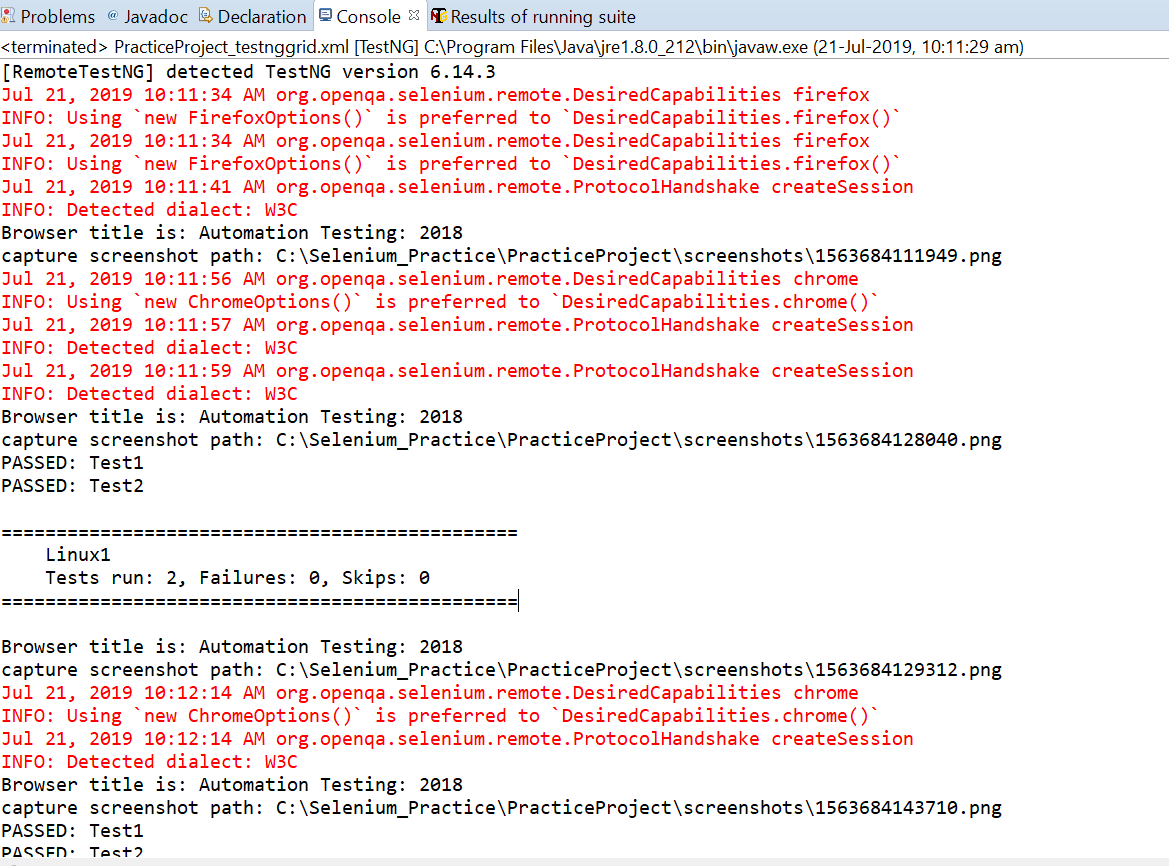
When you execute this testng.xml file, it first connects to Selenium Grid which will connect to Docker container with the given path and with the help of RemoteWebDriver it triggers execution in browsers located in docker containers.

you can observe the execution in docker containers log or if you have VNS viewer you can connect to docker linux machine and see it.


Friday, 19 July 2019

Docker windows storage location

Docker windows version can be installed in windows 10 enterprise edition.

After installing docker if you add add images in the container, the local(host) windows machine storage going to be increased as you are pulling all the images.

you can find the Hyper-V virtual hard disk size increased as soon as you pull any of the image available in the docker.

the virtual hard disk usually located in your local/host machine in below path.

C:\Users\Public\Documents\Hyper-V\Virtual hard disks