Wednesday, 23 December 2015

How to Disable Startup Programs in Windows

The more software you install on your computer, the longer it may seem to take to start up Windows. Many programs add themselves to the list of programs started when you boot your computer, and that list can get long.

Editor’s Note: Obviously our more geeky readers already know how to do this, but this article is meant for everybody else. Feel free to share it with your non-techie friends!

If you are using Windows 8 or Windows 10, scroll down.

Disabling Startup Programs in Windows 7, Vista, or XP

For some programs, it’s smart to have them start with Windows, such as anti-virus and firewall software. However, for most programs, starting them at boot-up just wastes resources and extends startup time. There is a tool installed with Windows, called MSConfig, that allows you to quickly and easily see what’s running at startup and disable the programs you prefer to run on our own after startup as needed. This tool is available and can be used to disable startup programs in Windows 7, Vista, and XP.

NOTE: MSConfig can be used to configure several things other than just startup programs, so be careful what you do with it. If you’re not sure about using it, just follow the steps in this article and you should be fine.

To run MSConfig, open the Start menu and type “msconfig.exe” (without the quotes) in the Search box. As you type, results display. When you see “msconfig.exe,” click on it or press Enter, if it is highlighted.

NOTE: If you are using Windows XP, open the Run dialog box from the Start menu, type “msconfig.exe” in the Open edit box, and click OK.
Click the Startup tab on the System Configuration main window. A list of all the startup programs displays with a check box next to each one. To prevent a program from starting up with Windows, select the check box next to the desired program so there is NO check mark in the box. Click OK once you have made your choices.
A dialog box displays telling you that you may need to restart your computer for the changes to take affect. Click Restart to restart your computer immediately. If are not ready to restart your computer, click Exit without restart.

Tuesday, 15 December 2015

Regular Expression in UFT

Regular expression is a string to search for complex phrase.

When there is sentence which has lot of words with special characters etc in it and it is keep on changing, so it is very difficult to adopt those changes in UFT (in Object Repository/ in Script) to overcome that issue we can use Regular expressions to search for that.

Below is technical issue I come across when I was working in the project
Object property value: Testing? please use Dev 123456 environment
and Dev 123456 number changes dynamically.

my solution for this: Testing.*\W.*

As in the above property value there is ? special character which is also can be used match with regular expression and hence it doesn't recognize entire text phrase.

Here \W try to match any non-word character. Equivalent to "[^A-Za-z0-9_]".
and .* try to match any zero or more characters

Below is few details I have given for various characters which can be used in regular expression to match our phrase.

Symbol Description
Alphanumeric Matches alphabetical and numerical characters only.
\n Matches a new line.
\[ Matches [ literal only
\] Matches ] literal only
\( Matches ( literal only
\) Matches ) literal only
\t Matches horizontal tab
\v Matches vertical tab
\| Matches | literal only
\{ Matches { literal only
\} Matches } literal only
\\ Matches \ literal only
\? Matches ? literal only
\* Matches * literal only
\+ Matches + literal only
\. Matches . literal only
\b Matches any word boundary
\B Matches any non-word boundary
\f Matches a form feed
\r Matches carriage return
\xxx Matches the ASCII character of an octal number xxx.
\xdd Matches the ASCII character of an hexadecimal number dd.
\uxxxx Matches the ASCII character of an UNICODE literal xxxx.


[xyz] Match any of the character class enclosed within the character set.
[^xyz] Matches any of the character class that are NOT enclosed within the character set.
. Matches any character class except \n
\w Match any word character class. Equivalent to [a-zA-Z_0-9]
\W Match any non-word character class. Equivalent to [^a-zA-Z_0-9]
\d Match any digit class. Equivalent to [0-9].
\D Match any non-digit character class. Equivalent to [^0-9].
\s Match any space character class. Equivalent to [ \t\r\n\v\f]
\S Match any space character class. Equivalent to [^\t\r\n\v\f]


* Matches zero or more occurrences of the given regular Expression. Equivalent to {0,}.
+ Matches one or more occurrences of the given regular Expression. Equivalent to {1,}.
? Matches zero or one occurrences of the given regular Expression. Equivalent to {0,1}.
{x} Matches exactly x number of occurrences of the given regular expression.
{x,} Match atleast x or more occurrences of the given regular expression.
{x,y} Matches x to y number of occurences of the given regular expression.


0 Grouping a clause to create a clause. "(xy)?(z)" matches "xyz" or "z".
| Alternation combines one regular expression clause and then matches any of the individual clauses. "(ij)|(23)|(pq)" matches "ij" or "23" or "pq".


"^\s*.." and "..\s*$" Represents that there can be any number of leading and trailing space characters in a single line.
"((\$\s?)|(#\s?))?" Represents an optional $ or # sign followed by an optional space.
"((\d+(\.(\d\d)?)?))" Represents that at least one digit is present followed by an optional decimals and two digits after decimals.

Sunday, 13 December 2015

HP LeanFT - Desktop Automation - C# Script

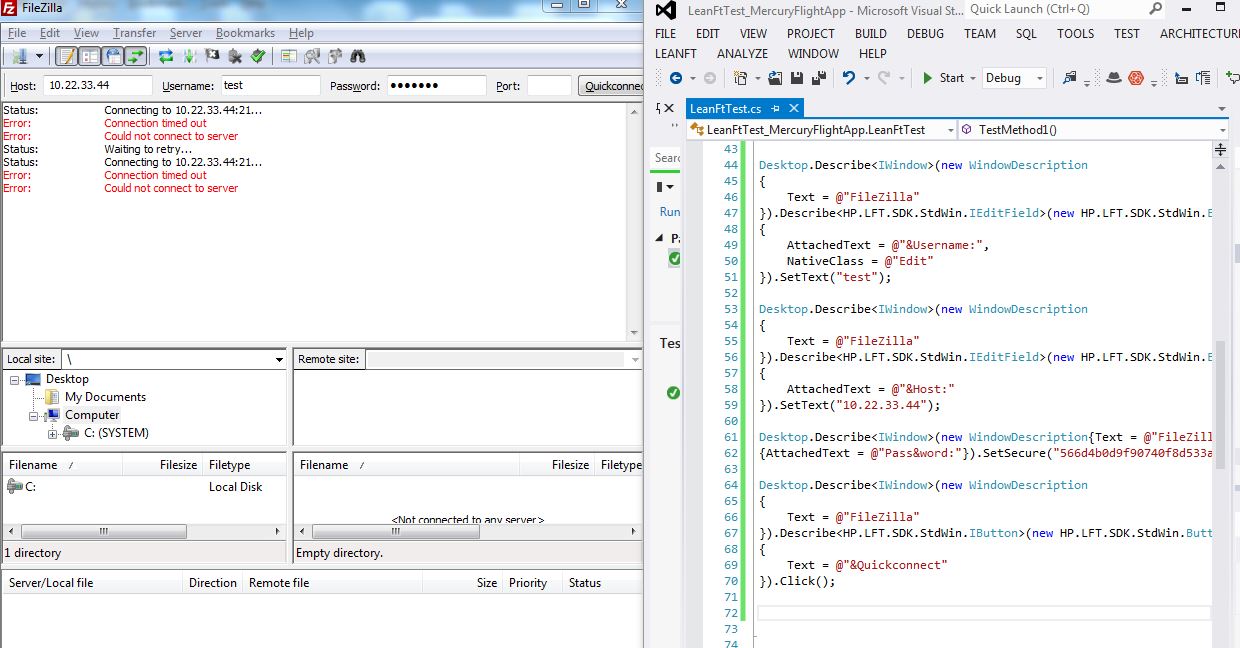
Below is the sample code generated from LeanFT with M.S. Visual Studio tool on FileZilla application.


            Desktop.Describe<IWindow>(new WindowDescription
            {
                Text = @"FileZilla"
            }).Describe<HP.LFT.SDK.StdWin.IEditField>(new HP.LFT.SDK.StdWin.EditFieldDescription
            {
                AttachedText = @"&Username:",
                NativeClass = @"Edit"
            }).SetText("test");

            Desktop.Describe<IWindow>(new WindowDescription
            {
                Text = @"FileZilla"
            }).Describe<HP.LFT.SDK.StdWin.IEditField>(new HP.LFT.SDK.StdWin.EditFieldDescription
            {
                AttachedText = @"&Host:"
            }).SetText("10.22.33.44");

            Desktop.Describe<IWindow>(new WindowDescription{Text = @"FileZilla"}).Describe<HP.LFT.SDK.StdWin.IEditField>(new HP.LFT.SDK.StdWin.EditFieldDescription
            {AttachedText = @"Pass&word:"}).SetSecure("566d4b0d9f90740f8d533a7d91dde4b001c07aee");

            Desktop.Describe<IWindow>(new WindowDescription
            {
                Text = @"FileZilla"
            }).Describe<HP.LFT.SDK.StdWin.IButton>(new HP.LFT.SDK.StdWin.ButtonDescription
            {
                Text = @"&Quickconnect"
            }).Click();

IBM Greehat / Rational Integration Tester issue while launching - An error has occurred. See the log file

When you installed HP UFT/LeanFT after installing IBM GreenHat/Rational Integration Tester then it gives an error "An error has occurred. See the log file" and doesn't launch the tool.


It is solely because of HP UFT/LeanFT tool, as it creates few variables in environment variables list which causes an error.

To resolve that issue, we have to delete below list of variables.

  • _JAVA_OPTIONS
  • IBM_JAVA_OPTIONS
  • JAVA_TOOL_OPTIONS
This issue is not only for IBM tools but also for eclipse tool to open,

Saturday, 12 December 2015

Worksoft Certify - Automation Testing tool Introduction

Worksoft Certify is functional automation testing tool which supports wide variety of technologies(SAP, Web, .Net, Java..etc). However this tool mostly uses for SAP ERP applications.

This tool provides most powerful script-less automation in effective way. It also supports integrating with SAP Solman, BPCA, HP ALM..etc.

This tool supports almost all features available in any other well known functional testing tool(like HP UFT, RFT..etc). Because of user friendly in nature this tool can be used by anybody with minimal training as it doesn't require programming language.

Please watch below short video for a glance on Worksoft Certify.

https://www.youtube.com/watch?v=b7KsMSxI8pw

HP LeanFT Introduction - Visual Studio C# script creation video

HP LeanFT helps us to perform automation testing more robust way. It's a plug in and can be installed on top of Eclipse or Visual Studio IDEs.

Rather then upgrading the core HP UFT functionality(VB Script and Object Repository) HP has launched LeanFT tool to support Object Oriented Language(Jave/C#).

LeanFT supports below technologies with Eclipse/Microsoft Visual Studio IDE

  • Web
  • WPF
  • WinForms
  • StdWin
  • SAPUI5
  • SAP
  • Java

For integration and creating C# script with LeanFT, Please watch short video with URL:
https://www.youtube.com/watch?v=r4968qn8qFE

Monday, 7 December 2015

Passing current date value in a variable with SAP CBTA tool

As you know SAP CBTA is script less automation testing tool and it is required lot of CBASE understanding in order to work with custom coding.
Without touching backend code, below option reveals us how we can pass current date value during the script execution.

Below are the steps to follow:
  1. Open the recorded CBTA Script
  2. Edit the date it captured
  3. Replace hard code date value with %=day(now())&"."&month(now())&"."&year(now())%
  4. Save it and run the script
if you want to make any changes like adding 1 day/ couple of months/ year advanced date then you can simply add +1(number) next to your period.
Example:
I have to enter 2 days advance date

%=Day(Date+2)%.%=Month(Date)%.%=Year(Date)%
I have to enter 1 month advance date

%=Day(Date)%.%=Month(Date+1)%.%=Year(Date)%
I have to enter 1 year previous date
%=Day(Date)%.%=Month(Date)%.%=Year(Date-1)%